Body
Question
How do I install Lockdown Browser if I already have it installed for another school or institution?
Environment
- Respondus Lockdown Browser
Information
Lockdown Browser applications are unique to the institution they are downloaded from. To take exams for GRCC, you must use the version specifically configured for our campus.
Answer
You do not necessarily need to delete your other school's version. You can install the GRCC version alongside it using the steps below.
Windows (PC)
- Download and run the GRCC Lockdown Browser installer (opens in a new window).
- When prompted by the installer, select the radio button for Add a version for a second institution.
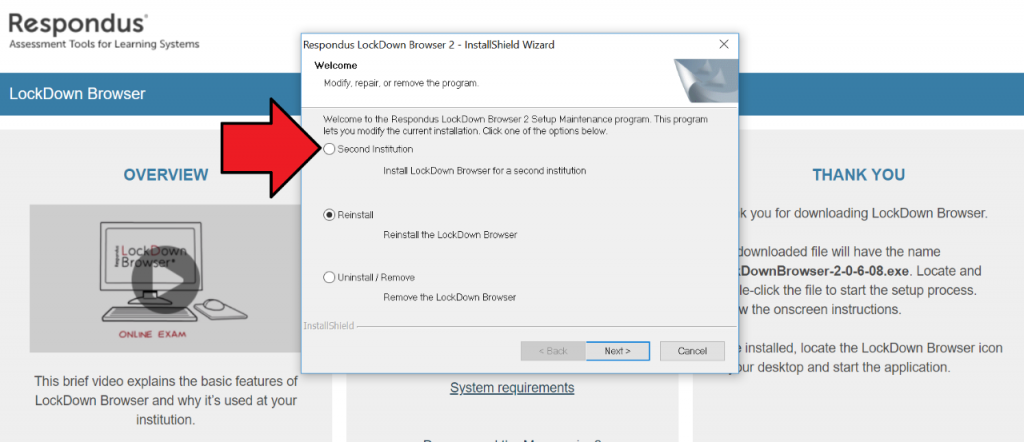
- Click Next and complete the installation.
- In your Windows Start menu, you will now see two distinct versions of Lockdown Browser. Be sure to select the one associated with GRCC when taking your exam.
Mac
- Open your Applications folder in Finder.
- Locate your existing copy of Lockdown Browser.
- Right-click (or Control-click) the application icon and select Rename.
- Rename the file to include the name of the original school (e.g., Lockdown Browser - [School Name]).
- Download and install the GRCC version (opens in a new window). The Mac will now treat this as a new application, allowing both to coexist in your folder.